Activation Guides
Choose the platform your code is for. Each guide shows the exact screens you will see.
-
1
Reveal your code
Open your order page and select Show Code.
-
2
Check the region
Every code belongs to one country and only works on an account from that country.
-
3
Redeem it
Pick your platform above and follow the steps. Most codes apply within seconds.
If a code will not redeem
Do not keep retrying, and do not open a second account to force it. Open a support ticket with your order number and the message the platform showed you.
Changed your mind?
If you have not selected Show Code yet, you can still ask us to cancel and refund the order, within 14 days of purchase. Once revealed, a code counts as used.

Steam
Steam wallet codes add credit to your account balance, which you can spend on anything in the store.
- 1Open the Steam client, or go to store.steampowered.com, and sign in.
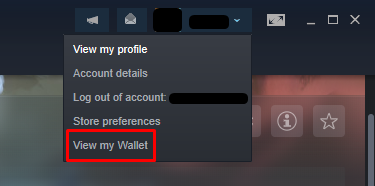
- 2Open the account menu at the top right, choose Account details, then Add funds to your Steam Wallet.

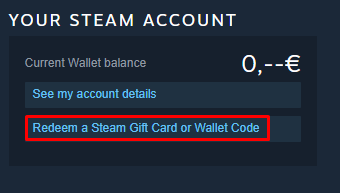
- 3Choose Redeem a Steam Gift Card or Wallet Code.
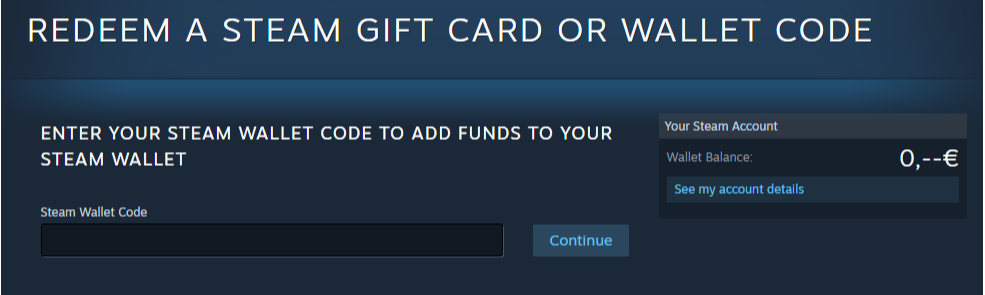
- 4Paste the code exactly as it appears on your order page, then select Continue.
- 5The credit lands in your wallet straight away and the new balance is shown.
A wallet code only works on an account whose wallet currency matches the code. A code bought for one country cannot be added to an account set to another.

Xbox
Xbox gift cards and Game Pass codes apply to the Microsoft account you sign in with. You can redeem on the web or on your console.
- 1Sign in to your Microsoft account at xbox.com. Use the account you actually play on.
- 2Go to redeem.microsoft.com and enter your code.
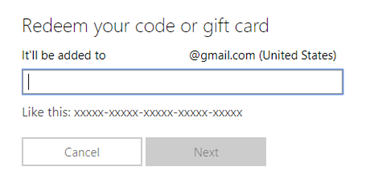
- 3Confirm. The balance or subscription is applied to that account.
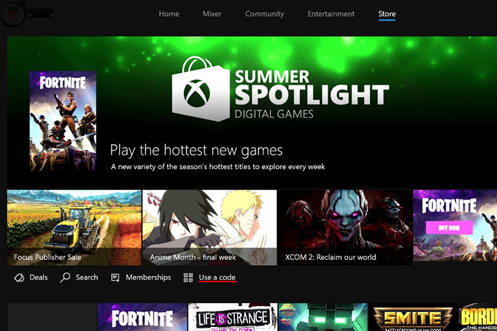
- 4On a console instead: sign in, open the Store, choose Use a code, then enter it and follow the prompts.
The code must match the region of your Microsoft account. The region is shown on the product page before you buy.

App Store
Apple gift cards top up your Apple Account balance, which covers apps, iCloud storage, subscriptions and Apple Music.
- 1Sign in with your Apple Account, or create one.
- 2On iPhone or iPad: open the App Store, tap your profile picture at the top right, then Redeem Gift Card or Code.
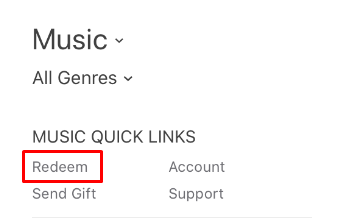
- 3On a Mac: open the App Store, click your name at the bottom of the sidebar, then Redeem Gift Card. In a browser, redeem.apple.com works too.
- 4Enter the code. The credit appears on your balance immediately.
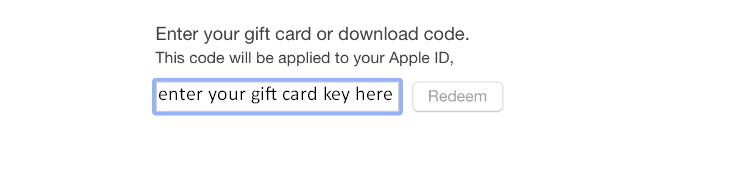
Apple gift cards are country specific, and an Apple Account country cannot be changed while a balance is still on it. Buy the card for the country your account uses.

Google Play
Google Play gift cards add credit to your Google Account for apps, games, in-app purchases and subscriptions.
- 1Sign in with your Google Account, or create one.
- 2Open the Play Store app, or go to play.google.com/redeem.
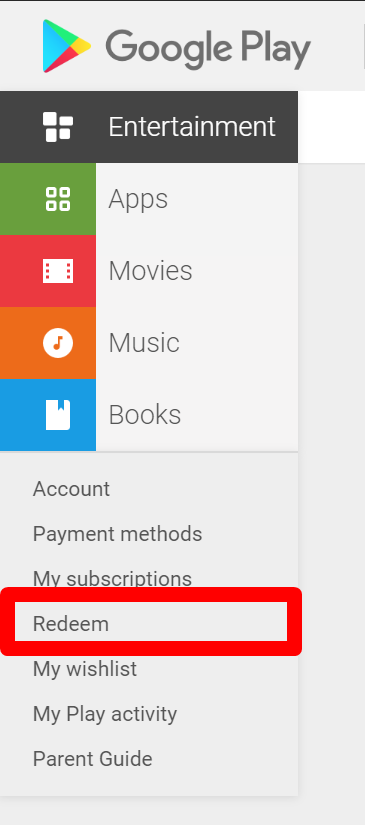
- 3In the app: tap your profile picture, then Payments & subscriptions, then Redeem code.
- 4Enter the code and confirm. The credit is added to your Play balance.
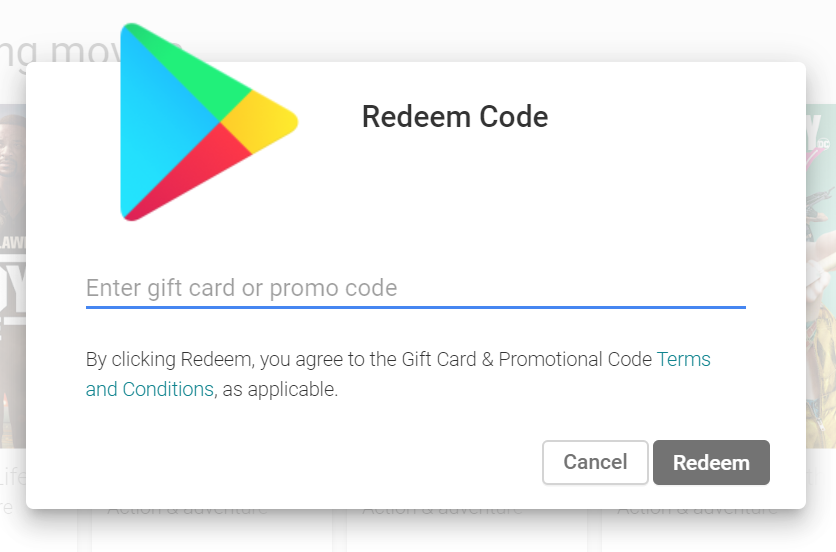
The card must match the country of your Google Account. Play credit cannot be moved between accounts or countries.

Netflix
A Netflix gift card adds credit to your account, which is then used automatically for your monthly payments.
- 1Go to netflix.com/redeem and sign in, or create an account.
- 2Enter the code exactly as it appears on your order page.
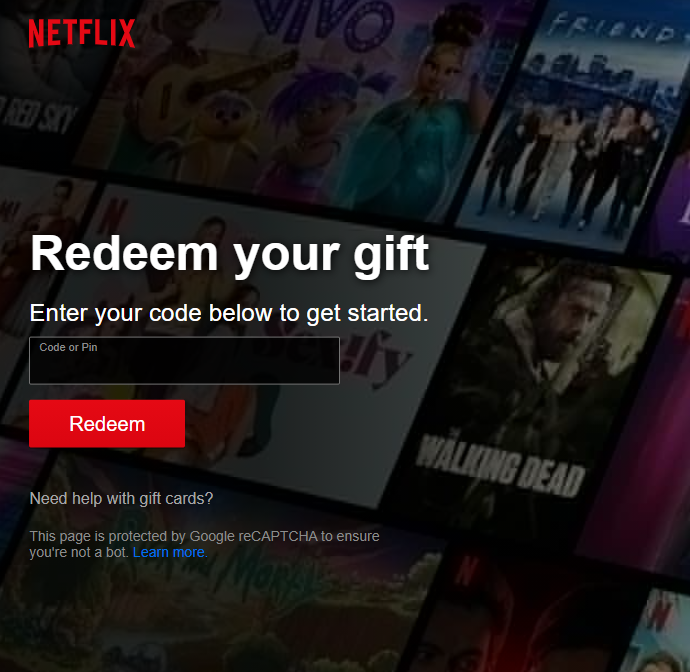
- 3Confirm. The value becomes account credit and covers your next payments. Plan prices differ by country.
A Netflix gift card only works on an account registered in the same country as the card. If your account is in another country the code will not be accepted, and opening an account elsewhere to use it is against Netflix’s terms. If a code will not redeem, open a support ticket rather than retrying.

Gameforge
Gameforge codes add credit or items to your Gameforge account, which is shared across their games.
- 1Sign in to your Gameforge account on the website of the game you play.
- 2Open the payment or shop area of your account and find the option to redeem a voucher or code.
- 3Enter the code and confirm. The credit or item is applied to the account you are signed in with.
This is a general outline. If the option is not where you expect it, open a support ticket with your order number and we will walk you through it for your game.