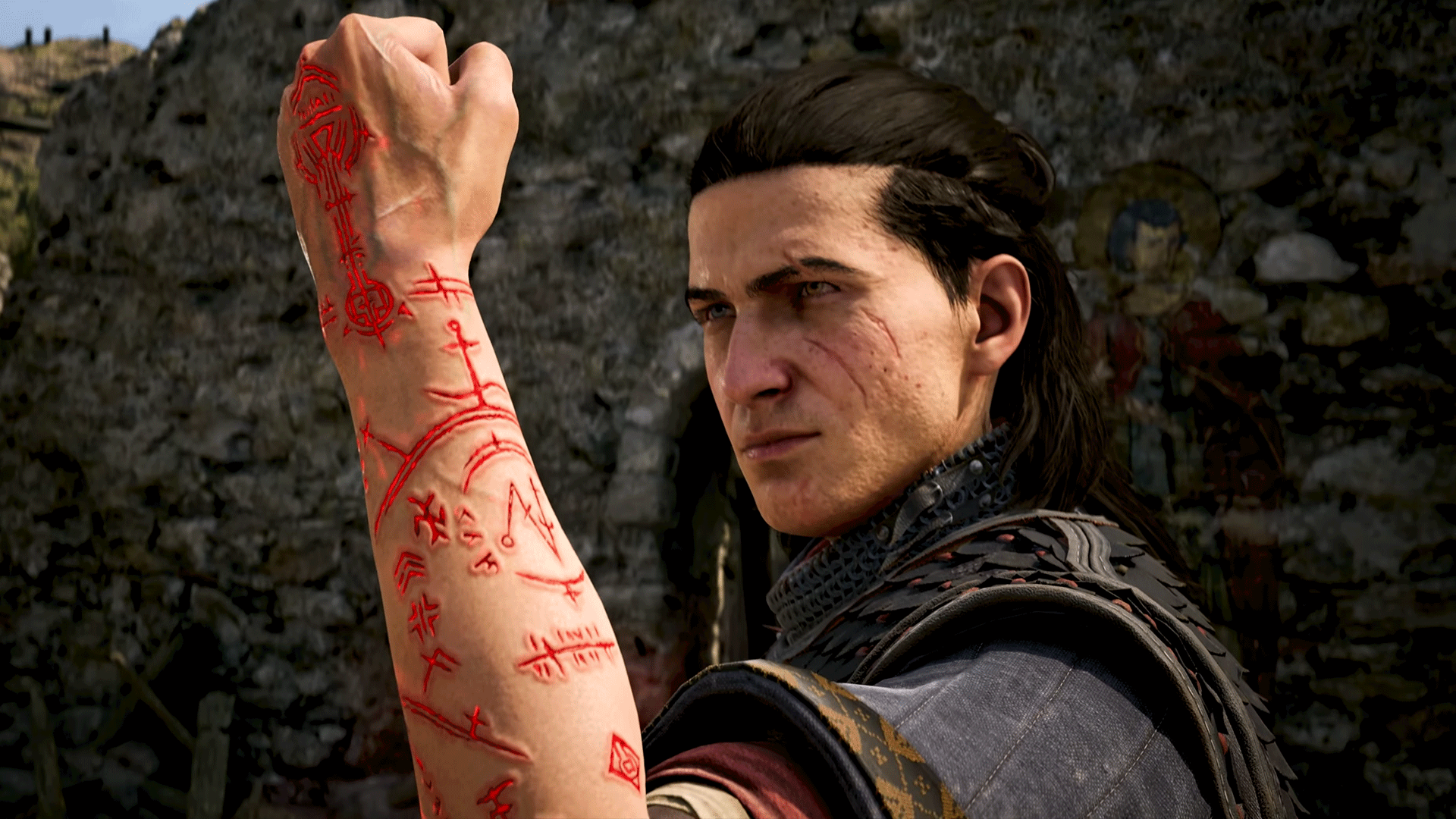
Rebel Wolves’ dark fantasy RPG The Blood of Dawnwalker is shaping up to be one of the most atmospheric vampire adventures in years, crafted by veterans of The Witcher 3. But like many modern AAA releases built on cutting-edge engine technology, the game can push your hardware hard on higher presets. If you’re struggling with frame drops or simply want the best balance of visuals and performance, a well-tuned settings menu can make all the difference. Based on IGN’s recently published PC settings guide, here’s a breakdown of the options that matter most.
Start With the Settings That Cost the Most Frames
Not every graphics option is created equal. According to IGN’s testing, a handful of settings have an outsized impact on your frame rate, while others barely move the needle but still eat VRAM. Before you drop everything to Low, identify the true performance hogs and dial those back first.
Ray Tracing: The Biggest Visual and Performance Trade-Off
Unsurprisingly, ray-traced lighting and shadows are among the most demanding features in the game. They deliver stunning reflections and atmospheric illumination that suit the game’s gloomy, gothic world beautifully, but the frame rate cost can be severe, especially on mid-range GPUs. If you’re chasing 60 fps or higher on older hardware, IGN’s guide suggests disabling or reducing ray tracing first — the standard global illumination still looks impressive without it.
Upscaling and Frame Generation: Your Best Friends
Modern upscaling tech like DLSS, FSR, and XeSS is essentially free performance when configured properly. Quality mode typically preserves image clarity while delivering a significant frame rate boost over native rendering. Frame generation can push things even further on supported cards, though it works best when your base frame rate is already reasonably high. IGN recommends experimenting with these options before sacrificing texture quality or draw distance.
Fine-Tuning for the Sweet Spot
Shadows, Foliage, and View Distance
Shadow quality and foliage density are classic frame rate killers in open-world games, and Dawnwalker is no exception. Dropping shadows from Ultra to High or Medium often yields noticeable gains with minimal visual loss. View distance and crowd or NPC density settings can also impact performance in busier settlements, so consider lowering them if towns and villages cause stutter.
Don’t Overlook the Basics
Before you touch a single in-game slider, make sure your GPU drivers are up to date, close background applications, and verify that your monitor’s refresh rate is correctly configured. Small housekeeping steps like these can eliminate stutter that no graphics preset will fix. Keeping an eye on VRAM usage is also wise — pushing textures beyond your card’s memory capacity causes severe stuttering.
Our Take: Why Optimization Matters Here
The Blood of Dawnwalker leans heavily on mood — candlelit castles, mist-covered valleys, and moonlit forests. Ironically, that means some of the most demanding features are also the ones that define its identity. Our advice? Prioritize lighting and atmosphere, then claw back frames from less noticeable options like shadows and background characters. A stable frame rate with strong lighting will always look better than maxed-out settings with stutter.
As the game’s launch approaches, it’s also a great time to stock up on wallet credit so you can grab it at launch. You can pick up Steam gift cards and game codes at TURGAME.com, often at competitive prices, making it easy to jump into Sangora the moment it goes live.
Source: IGN