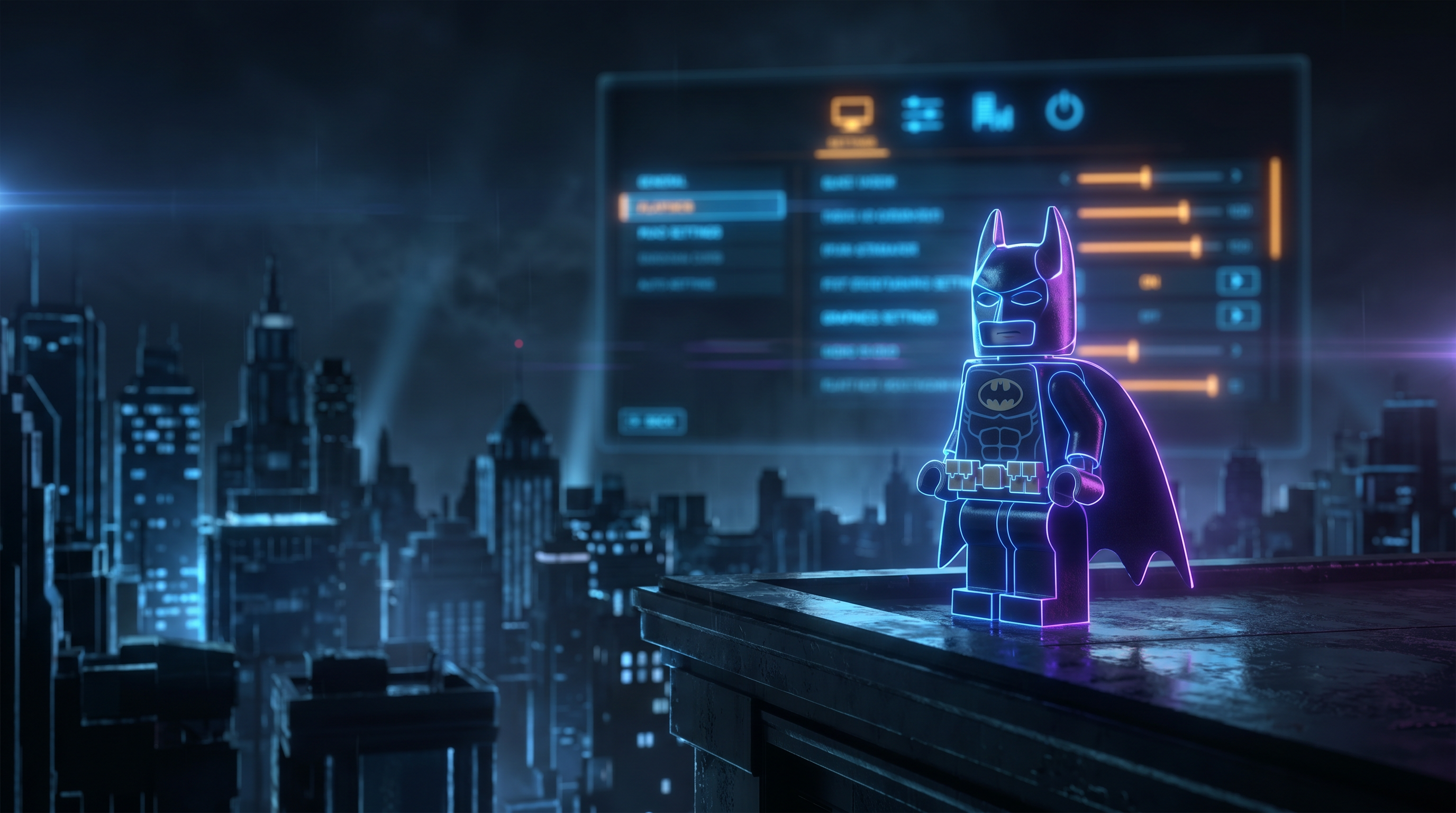
Mastering the Dark Knight’s Visual Performance
Gotham City awaits in LEGO Batman: Legacy of the Dark Knight, but choppy performance can put a damper on your crime-fighting adventures. Getting the right balance between stunning visuals and smooth gameplay is essential for fully immersing yourself in this block-based Batman universe.
Understanding Your System Requirements
Before twEaking settings, it’s crucial to understand what your hardware can handle. LEGO Batman: Legacy of the Dark Knight combines detailed environments with dynamic lighting effects that can be demanding on older systems. The game performs best with a modern graphics card, plenty of RAM, and a solid-state drive for reduced loading times.
Essential Graphics Settings Tweaks
For those experiencing lag or frame rate drops, adjusting these key settings will make a significant difference:
Resolution: While 1080p is ideal for most players, those with older hardware may need to reduce to 900p or 720p to maintain consistent frame rates.
Texture Quality: High-resolution textures look impressive but require substantial VRAM. Consider medium settings if you have less than 4GB of video memory.
Shadow Quality: Shadows are resource-intensive. Reducing shadow quality can significantly improve performance without dramatically affecting the game’s charming aesthetic.
Anti-Aliasing: FXAA is generally more performance-friendly than MSAA while still providing smooth edges on LEGO elements.
View Distance: Adjusting how far environmental elements render can help maintain stable frame rates, especially during intense action sequences or when flying over Gotham.
Advanced Optimization Tips
Beyond in-game settings, consider these additional optimizations:
Update your graphics drivers regularly to ensure compatibility and performance improvements.
Close background applications while playing to free up system resources.
For NVIDIA users, enabling the “Power Management Mode” set to “Prefer Maximum Performance” in the NVIDIA Control Panel can prevent unexpected frame drops.
Finding Your Perfect Balance
Remember that LEGO games maintain their charm even with reduced graphical fidelity. The art style is inherently resilient to lower settings, so prioritize smooth frame rates over maximum visual effects. Experiment with different configurations to find what works best for your system while maintaining an enjoyable experience.
Ready to jump into LEGO Batman: Legacy of the Dark Knight? You can find game codes and gift cards to get your copy at TURGAME.com, offering competitive prices and instant delivery to get you playing without delay.
With these optimized settings, you’ll be cleaning up Gotham’s streets in smooth style, ensuring that nothing stands between you and justice in the LEGO universe.
Source: Destructoid